Set up Philips Hue Sync on your Samsung Smart TV
Important Note: The information on this page is for Hong Kong products only. Models, sequences or settings will vary depending on location and/or where the product had been purchased. To be redirected to your local support page please click here.
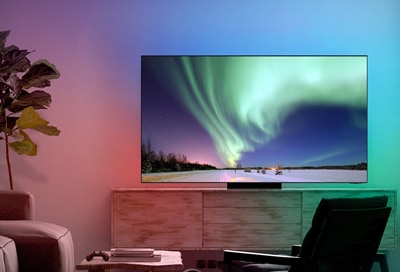
The Philips Hue Sync app on your Samsung Smart TV lets you enjoy seamless lighting experiences during your favorite programs. You can also use this feature with apps like Netflix and Disney+. This collaboration between Samsung and Philips Hue provides an exciting, immersive way to enjoy shows, movies, and games. The Philips Hue Sync app supports all image formats, such as 8K, 4K, and HDR 10+.
What you will need
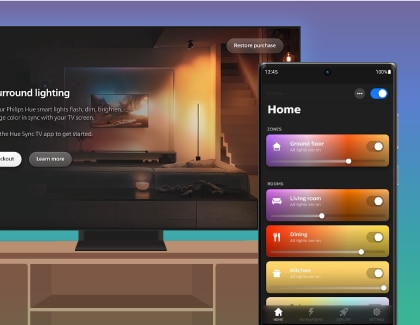
You will need the following to use Hue Sync:
- A 2024 or newer Samsung Smart TV
- The Philips Hue Sync mobile app
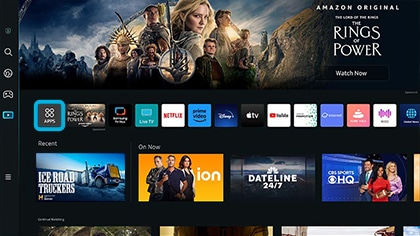
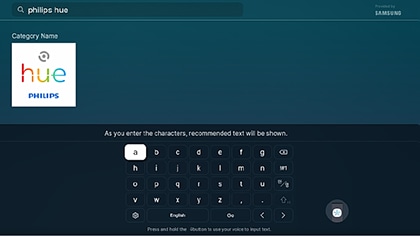
- The Philips Hue Sync TV app
- A Philips Hue account
- A Philips Hue Bridge
- Philips Hue color compatible lights
Service availability as of April, 2026:
|
Model Year |
2021 and prior |
2022 |
2023 |
2024 |
2025 |
2026 and later |
|---|---|---|---|---|---|---|
|
TV |
Not available |
Q60B and above |
Q60C and above |
Q60D and above |
Q7F and above |
U9000H and above (Excluding M70H) |
|
Smart Monitors |
Not available |
M80B, G65B, G70B, G85SB, G97NB |
M80C, M70C, S90PC G70NC, G95SC, G97NC |
M80D, G70D, G80SD, G85SD, G95SD |
M70F, M80F, M90SF |
- |
Note: The service availability may change later.
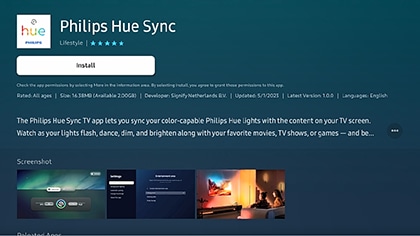
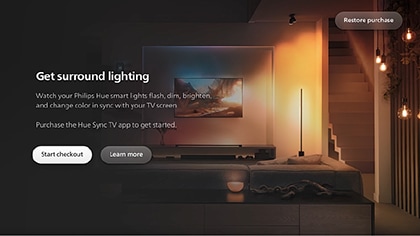
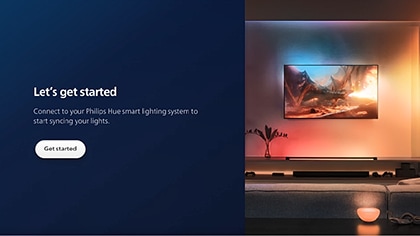
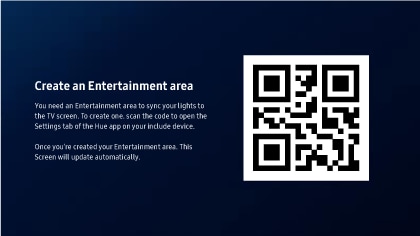
Notes:
- Make sure the Philips Hue Sync mobile app was installed on your mobile device prior to scanning the QR code.
- Make sure that your mobile device is connected to the same Wi-Fi network as your Philips Hue Bridge.
- Make sure Bluetooth is enabled on your mobile device.
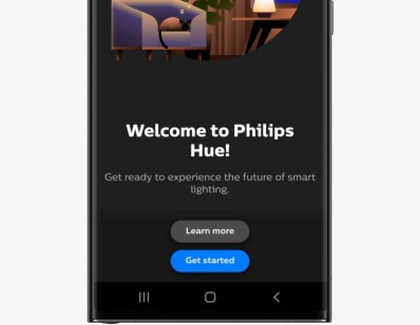
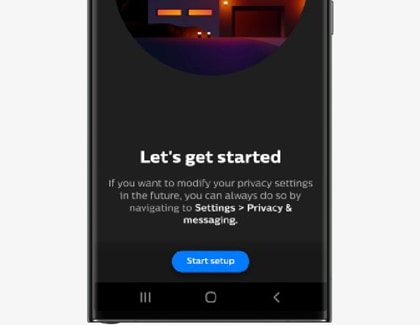
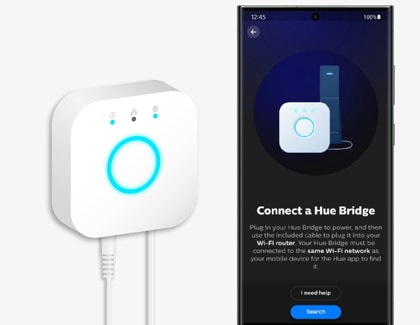
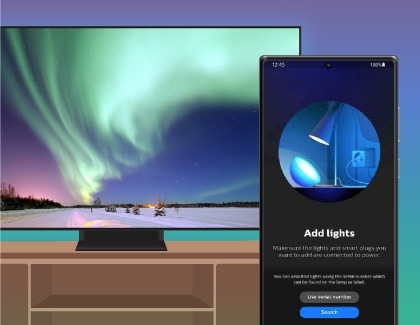
Note: You can customize the name of the lights by tapping Start configuration, entering a name, and then tapping Save.
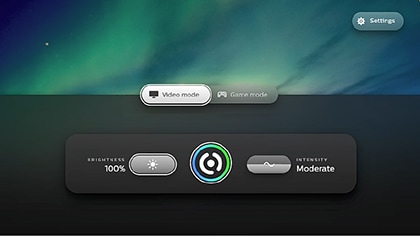
Note: If the screen on your Smart TV is not updated automatically or showing the Philips Hue dashboard, close the Philips Hue Sync TV app and open it again.
If the above information does not match what your product is showing, you may check the User Manual for your product. If you are unable to solve the problem, please contact us for further assistance.
Thank you for your feedback!
Please answer all questions.
RC01_Static Content : This text is only displayed on the editor page