Check the liquid damage indicator on the phone
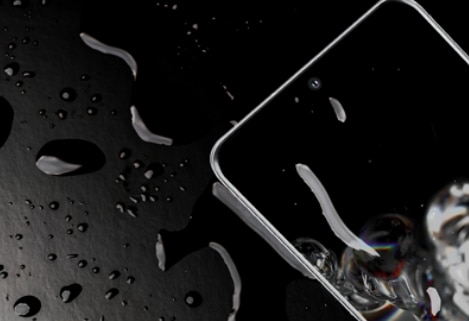
You can check if your Samsung phone or tablet has liquid damage by inspecting the LDI (Liquid Damage Indicator) inside the SIM or SD card tray. The LDI changes color when exposed to moisture, helping you confirm if water damage has occurred.
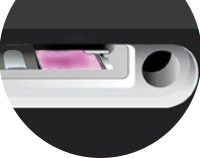
If the LDI is pink, purple, or red, the device has been exposed to liquid and may require service. If it is white or has light-colored marks, the device is not affected.
Step 1. Eject the card tray.
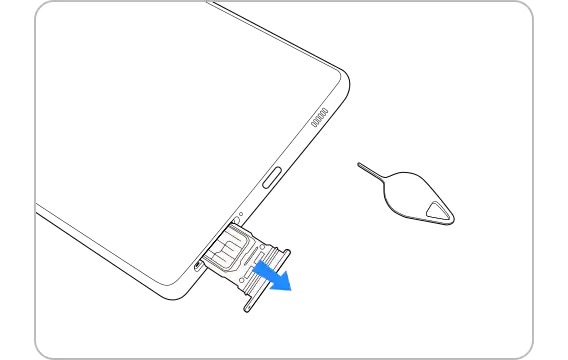
Power off your phone or tablet, then insert the ejector tool into the small hole next to the SIM/MicroSD tray to remove it.
Shine a flashlight into the SIM/MicroSD slot and check the LDI color. If it is solid pink, purple, or red, the device has liquid damage. If it is white or white with light pink or purple marks, the device is not exposed to moisture.
Normal LDIs
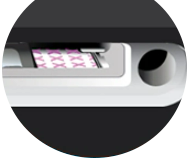
An LDI exposed to liquid
Step 3. Request service.
If the LDI indicates liquid exposure, arrange a repair through the Samsung Support Center, as the device will need service.
Note:
- You will need the ejector tool that came with your device and a flashlight to complete these steps.
- The SIM/MicroSD tray location may vary depending on your device model.
- Liquid damage is considered physical damage and is not covered under the Samsung Limited Warranty.
Thank you for your feedback!
Please answer all questions.