How to use the Samsung Galaxy Ring
The Samsung Galaxy Ring helps you track your health, sleep, and daily activity by syncing data with the Samsung Health app. To use it, wear it correctly, connect it via Bluetooth, and manage features through the Galaxy Wearable app.
This guide explains how to set up, use, and manage your Samsung Galaxy Ring step by step.
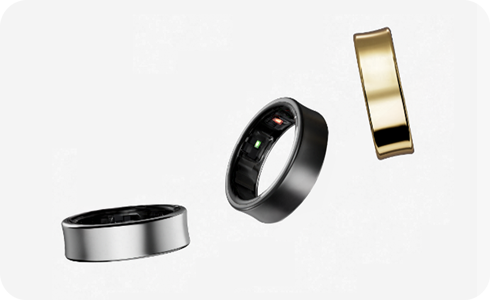
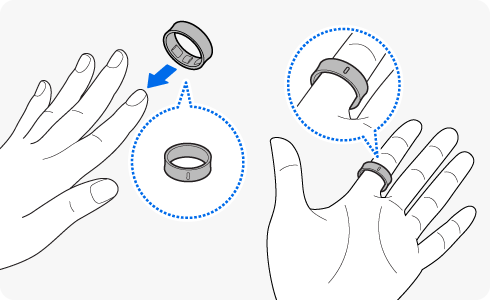
Wear the Galaxy Ring correctly
- Wear the ring with the indicator facing your palm.
- Choose a finger where it fits comfortably (not too tight or loose).
Connect the Galaxy Ring to your phone
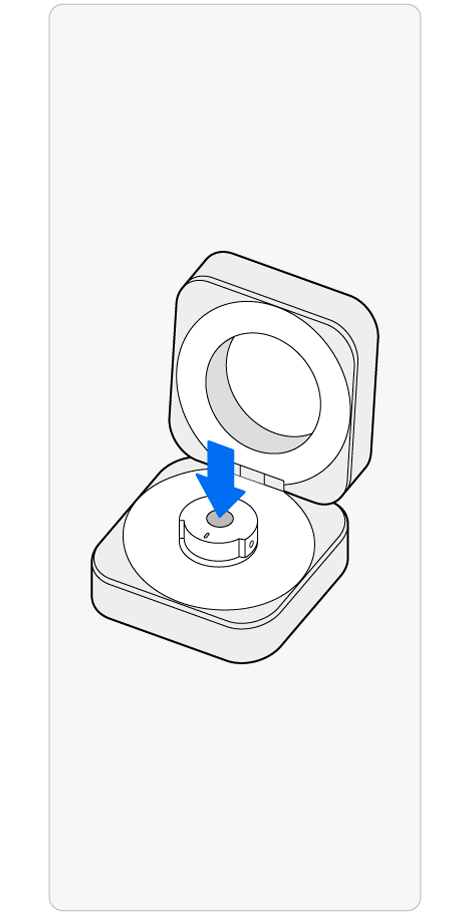
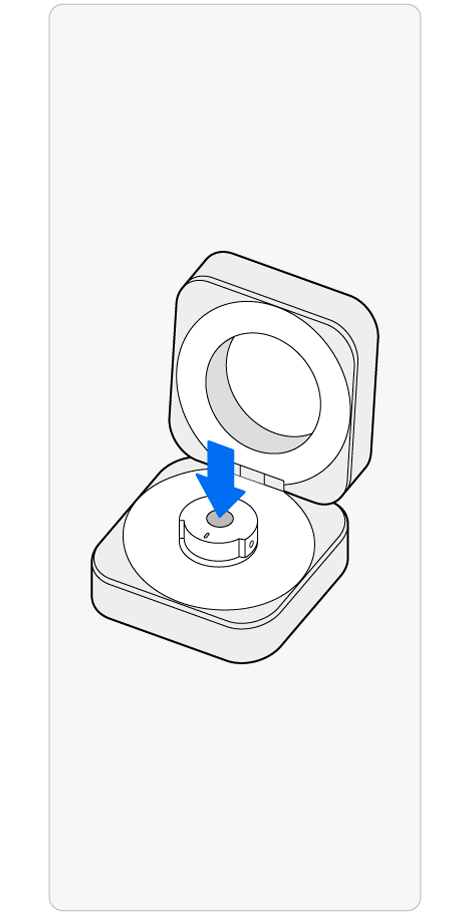
Step 1. Open the charging case > press and hold the multipurpose button for at least 3 seconds.
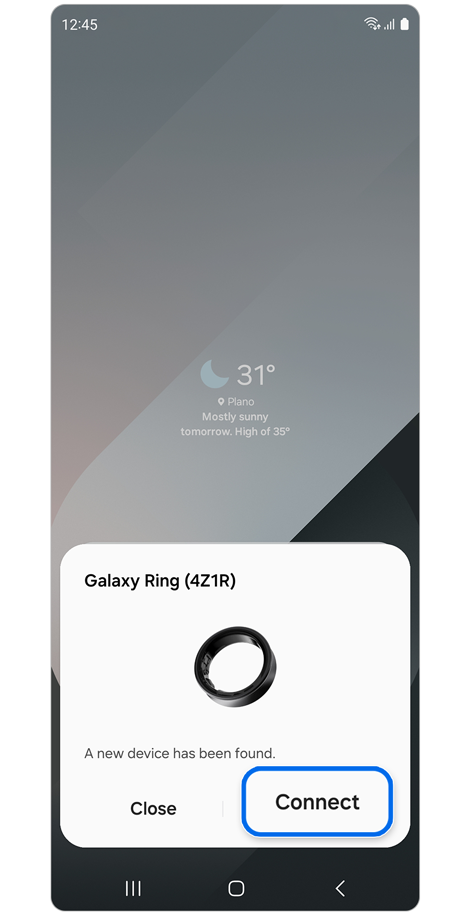
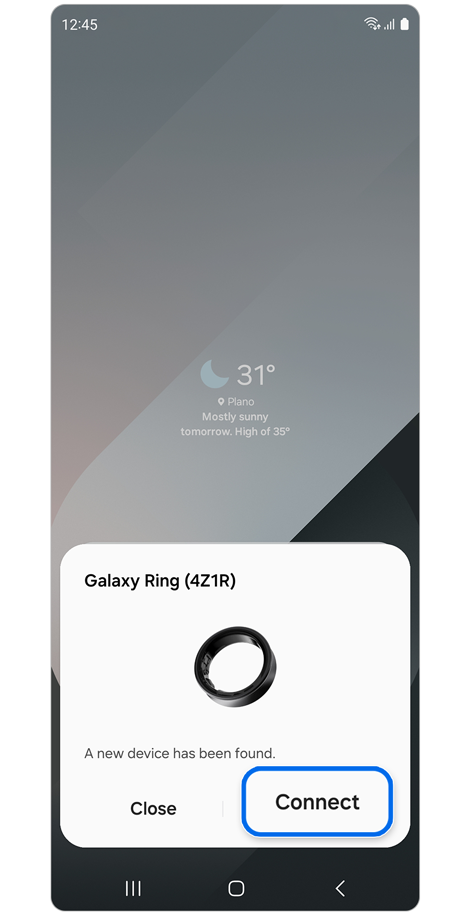
Step 2. Tap Connect on your device.
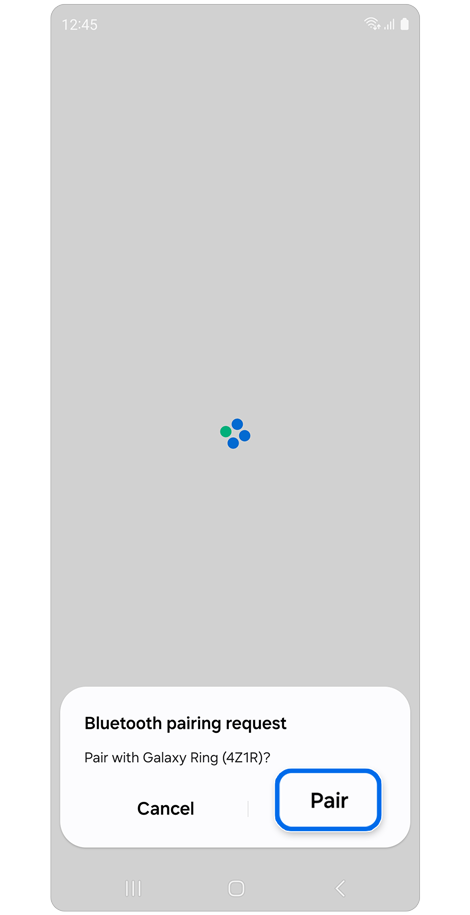
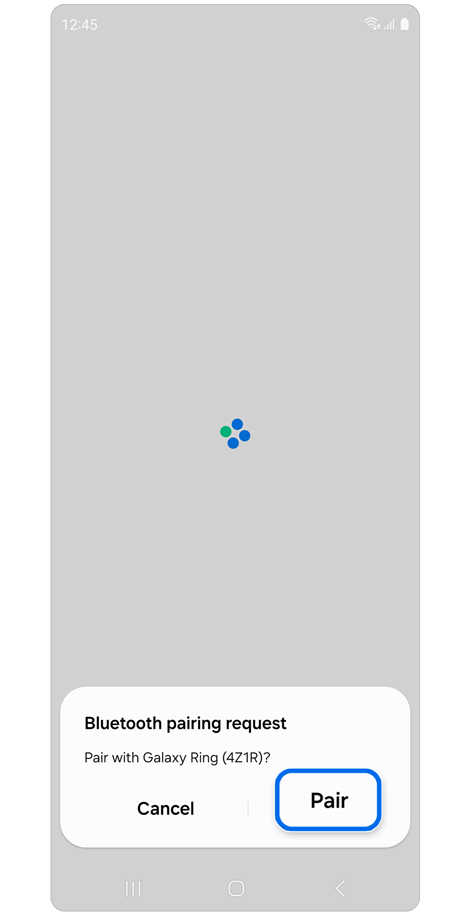
Step 3. Tap Pair.
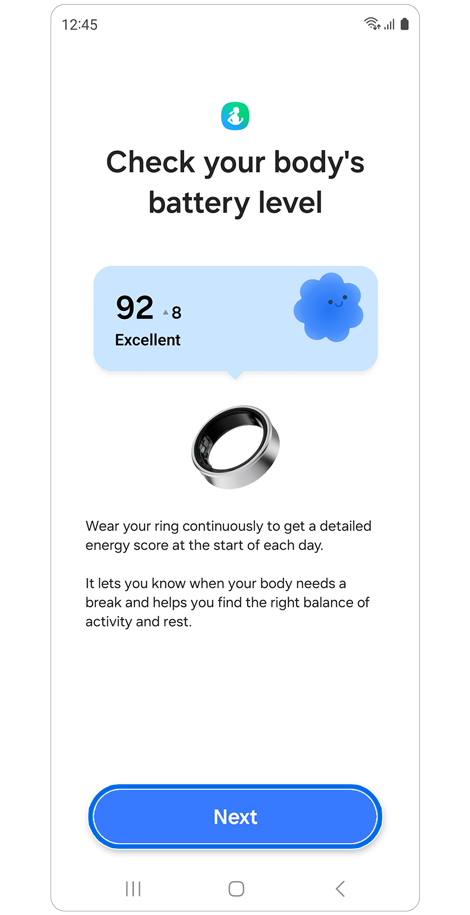
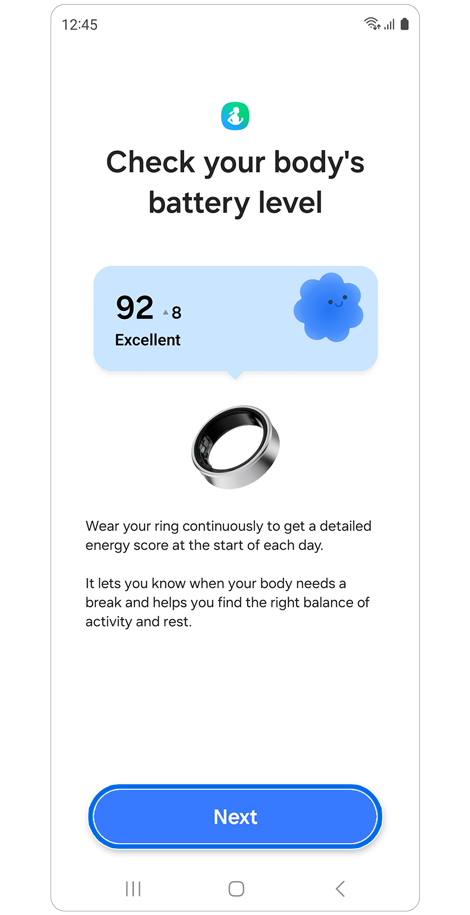
Step 4. Review permissions > Read the guide > Tap Next.
You can also connect from Bluetooth settings or the Galaxy Wearable app.
Checking battery level
- Green blinking: battery ≥ 15%
- Red blinking: battery < 15%
Ring’s sensor light
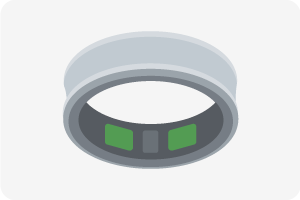
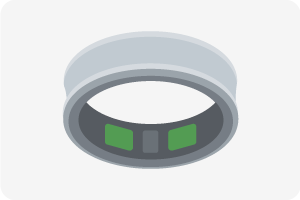
Blinking green light: Battery level ≥ 15%


Blinking red light: Battery level < 15%
Battery light identification
|
Lighting |
Status |
|---|---|
|
All lights flash and turn off |
Welcome lighting when you open the charging case |
|
Flashes clockwise in sequence |
Display the remaining battery level |
|
Flashes clockwise in sequence and blinks at the end |
Charging(lighting indicates the remaining battery level) |
|
All lights flash |
Fully charged |
|
All lights blink |
Charging error |
|
Spins clockwise continuously |
Bluetooth pairing mode |
Track your health data
Energy score
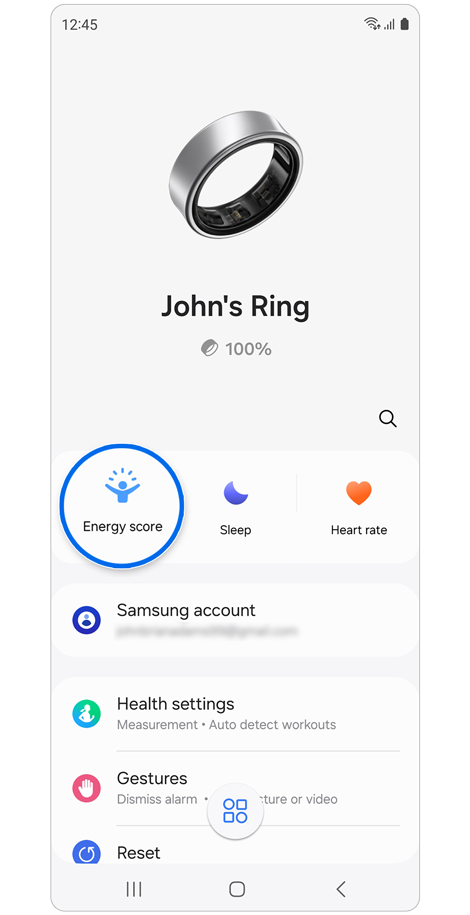
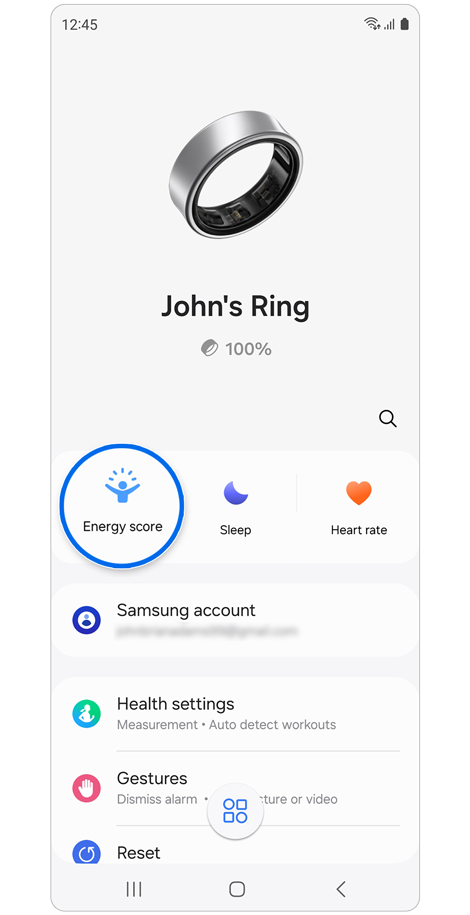
Open the Galaxy Wearable app > View data like Energy Score, sleep, and activity > Sync data automatically with Samsung Health.
Sleep tracking
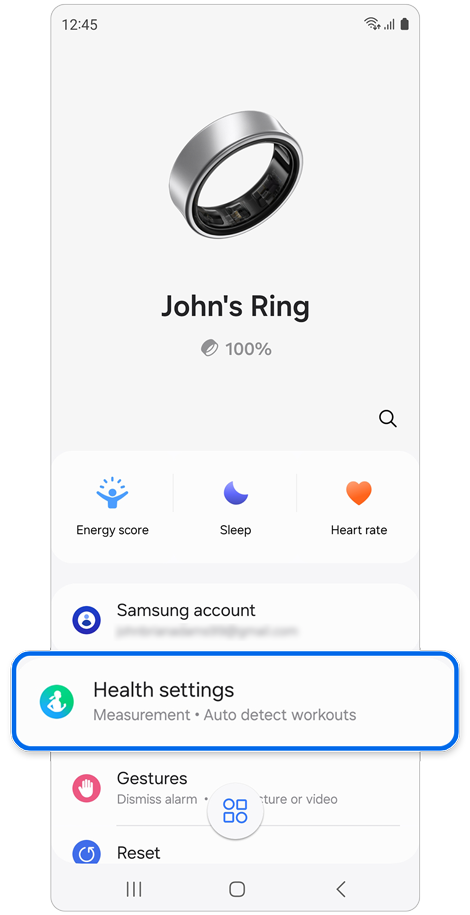
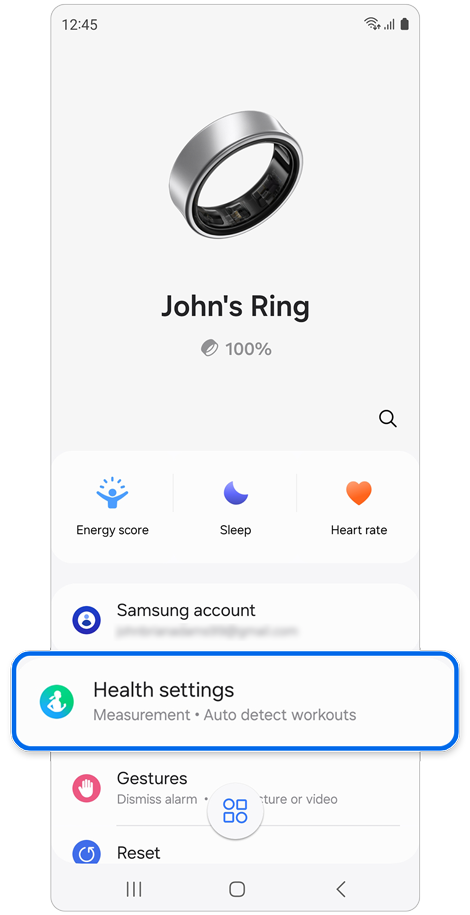
Step 1. Open the Galaxy Wearable app > Tap Health settings.
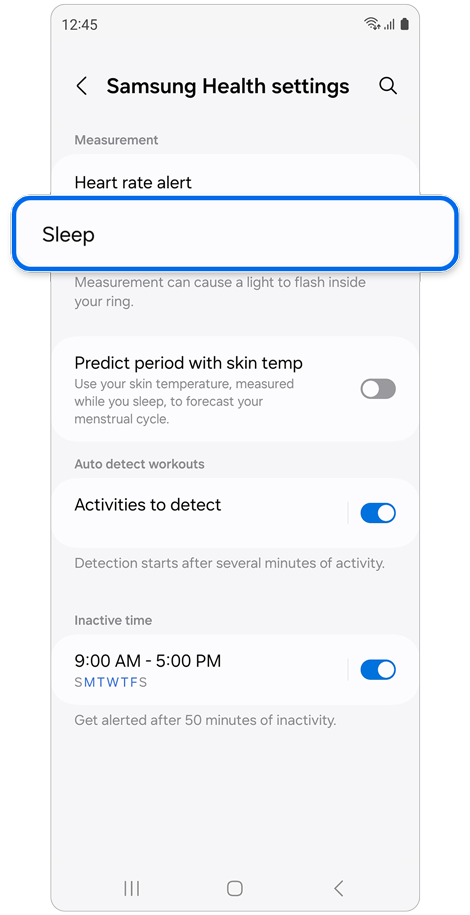
Step 2. Tap Sleep.
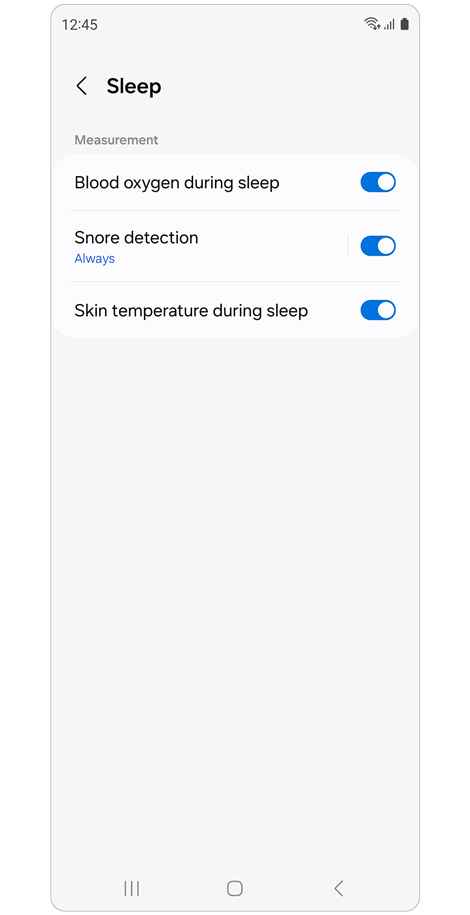
Step 3. Toggle with measurement settings to your preference.
Heart rate alerts
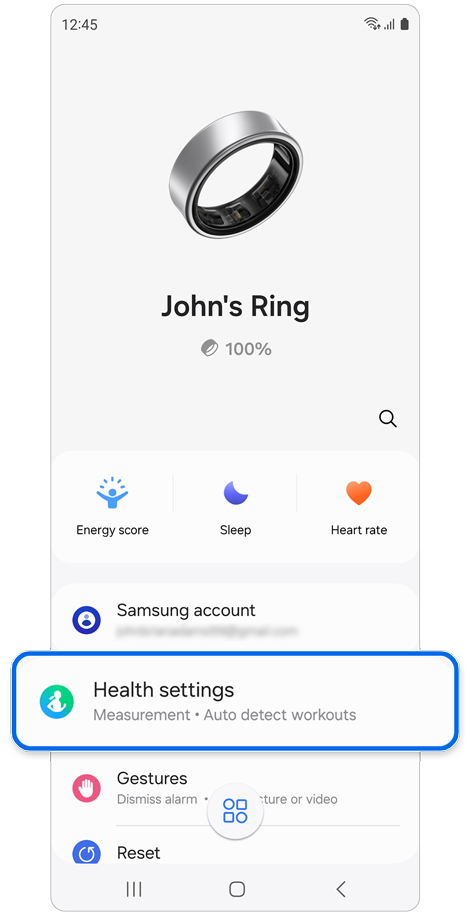
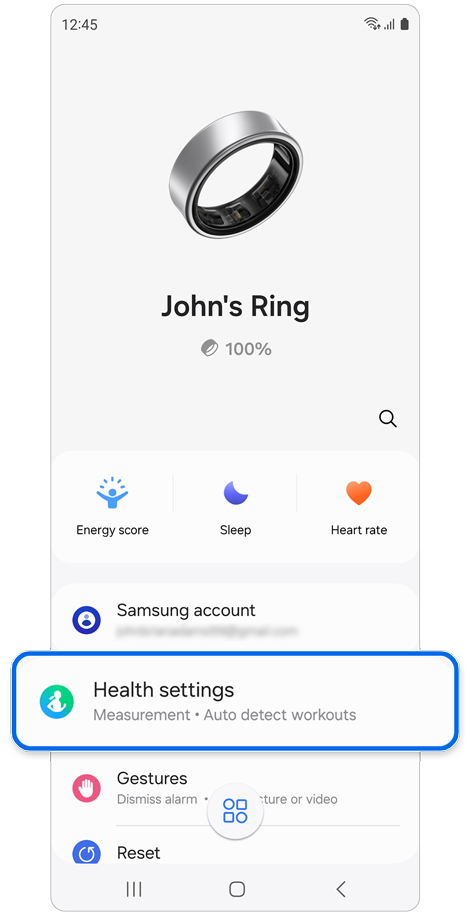
Step 1. Open the Galaxy Wearable app > Tap Health settings.
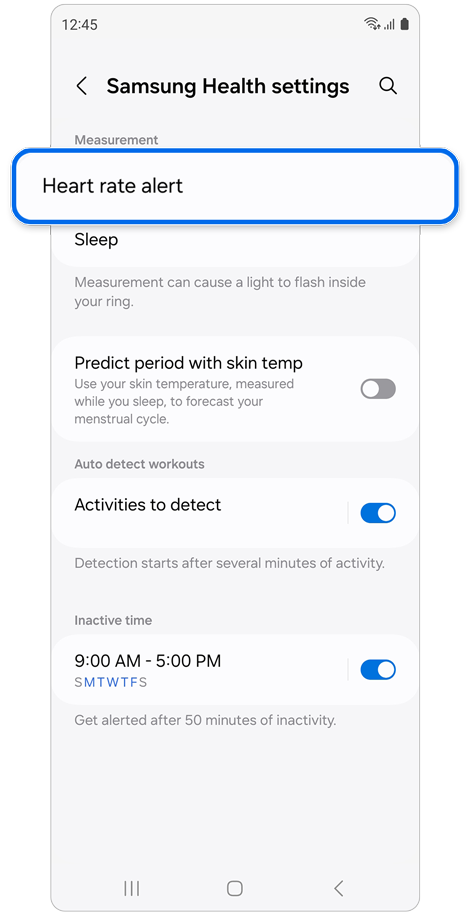
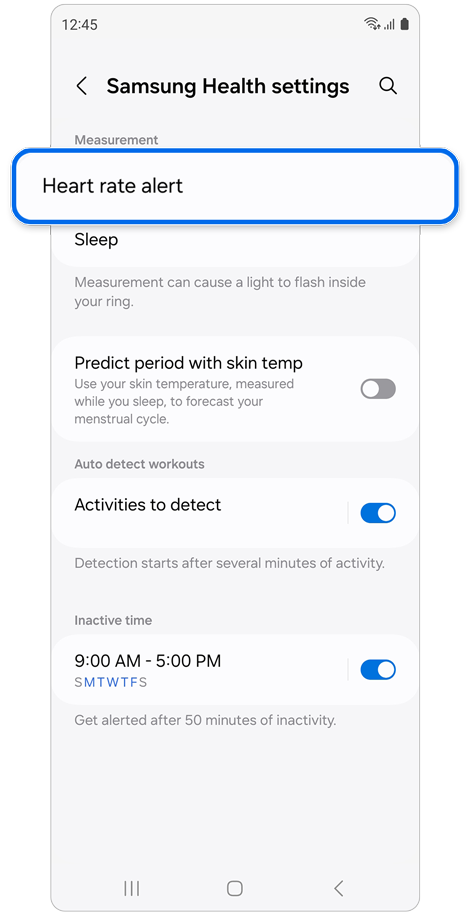
Step 2. Tap Heart rate alert.
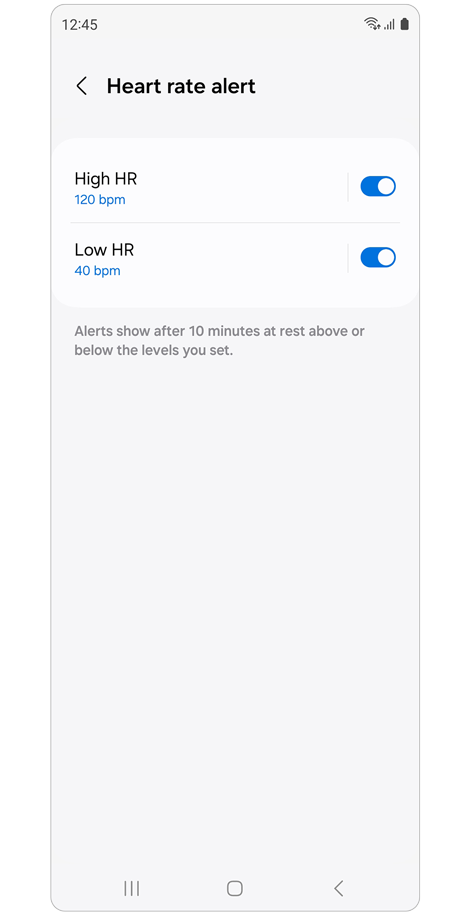
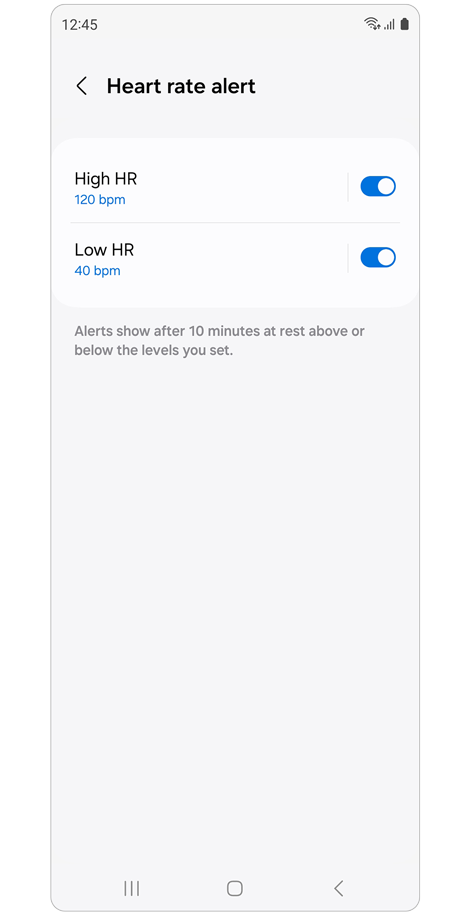
Step 3. Customize the high and low heart rate alerts.
Set up menstrual cycle tracking
Notes:
- Predicted ovulation dates are only for personal reference and may differ from actual dates. Please do not use the data for medical purposes (symptoms, treatment, or prevention).
- The tracking feature is not intended to be used for pregnancy planning or contraception purposes.
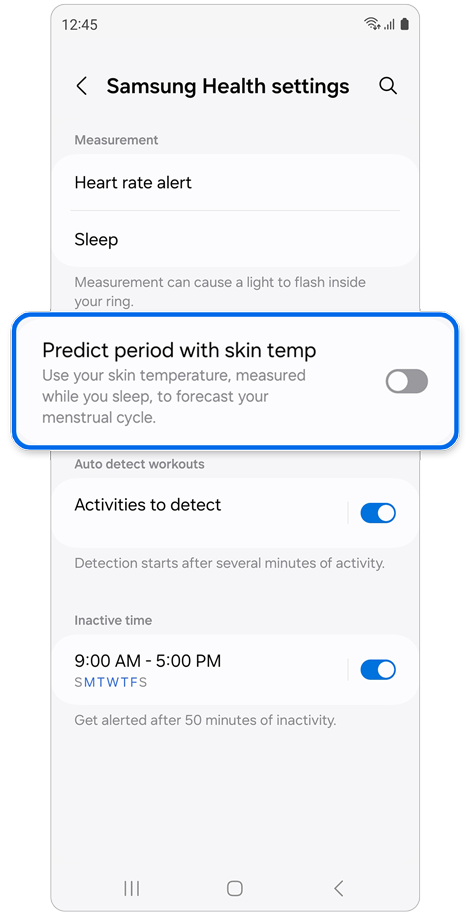
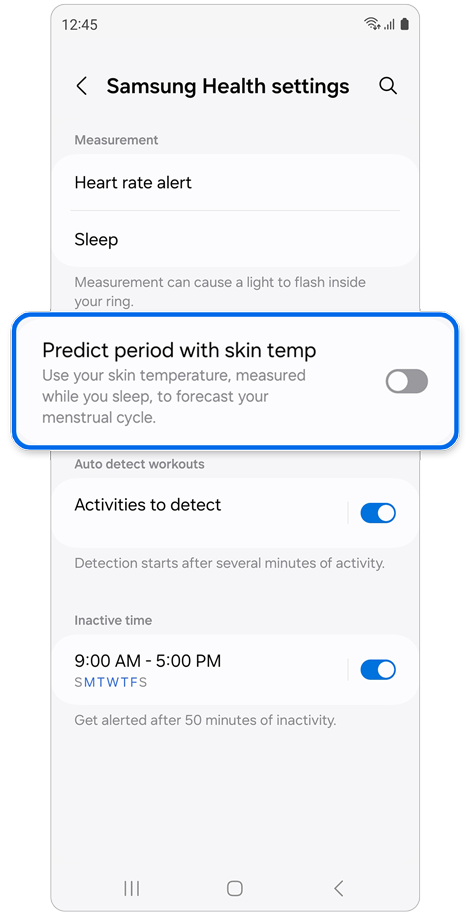
Step 1. Tap Health settings on Galaxy Wearable app > Tap Predict period with skin temp.
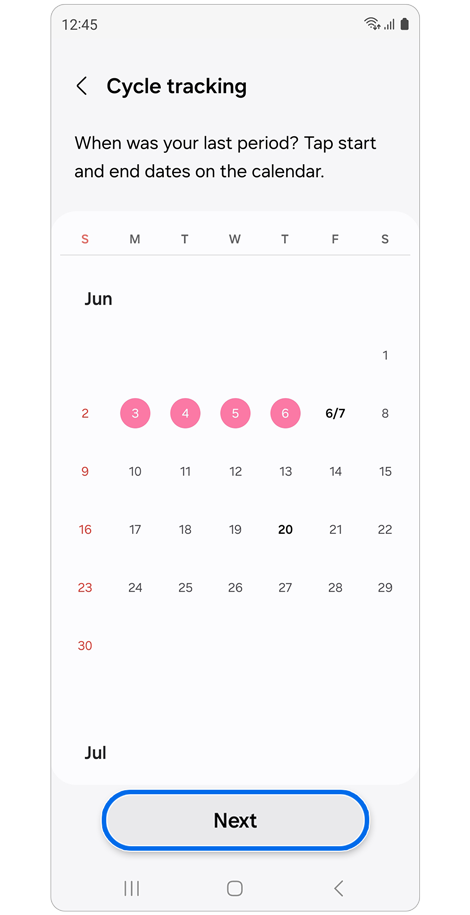
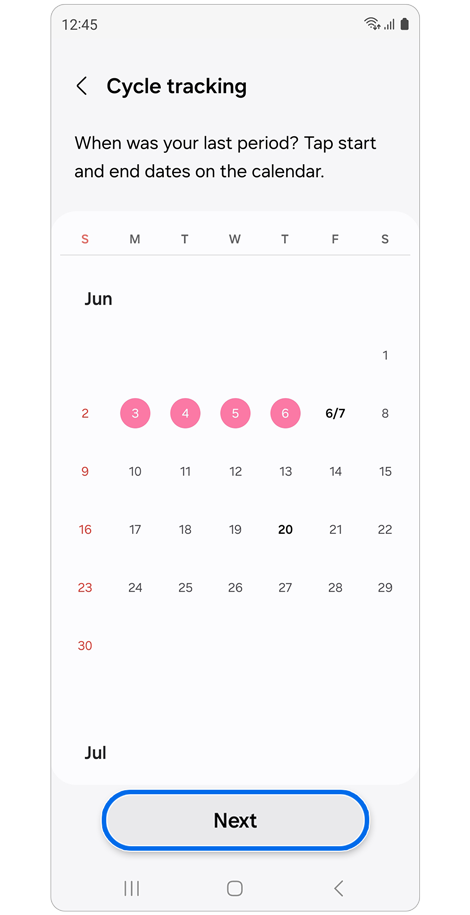
Step 2. Set your last period’s start and end date > Tap Next.
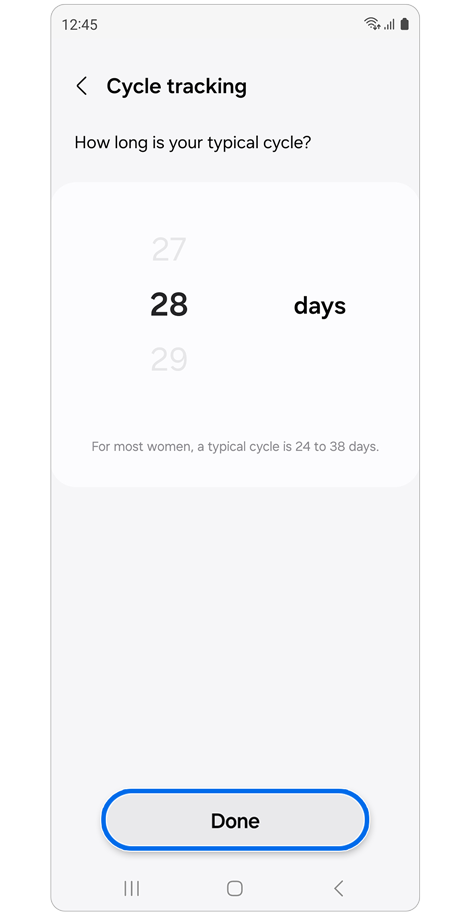
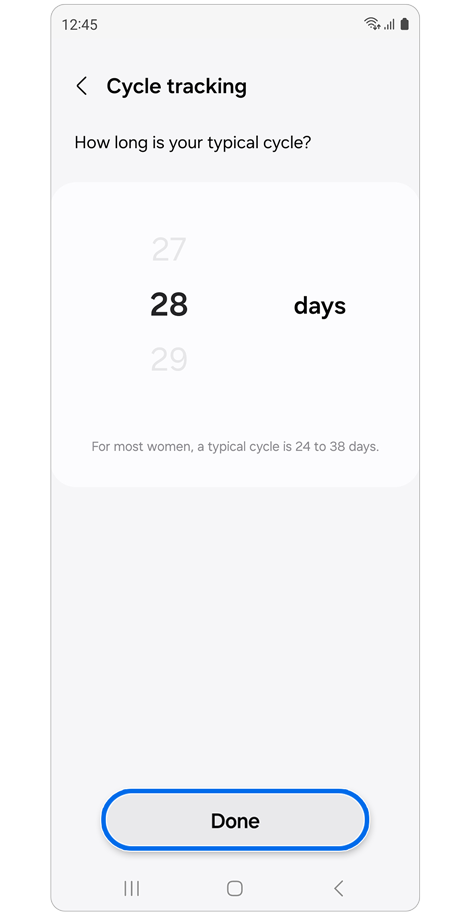
Step 3. Set cycle length > Tap Done.
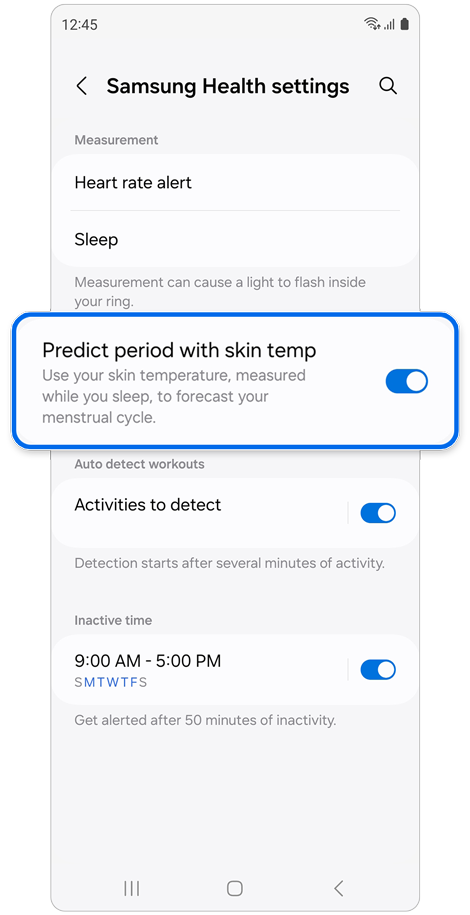
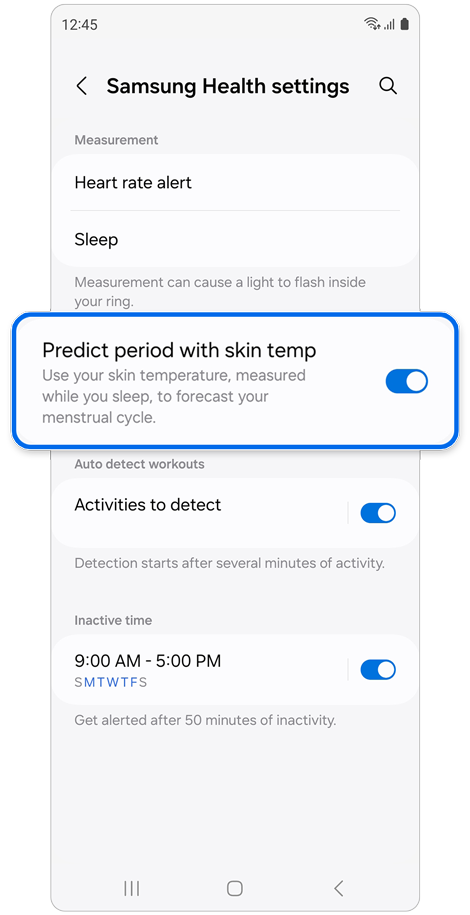
Step 4. Agree to the disclaimer > Turn Predict period with skin temp switch On.
Activity tracking
- Set up auto detect:
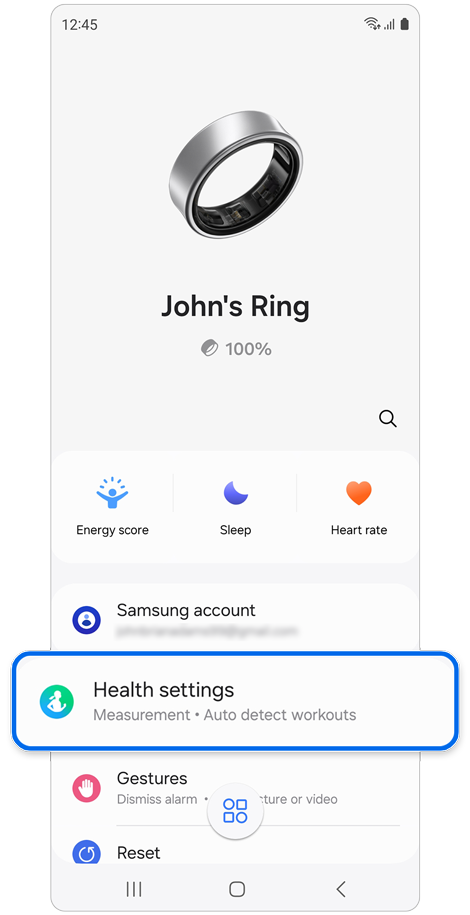
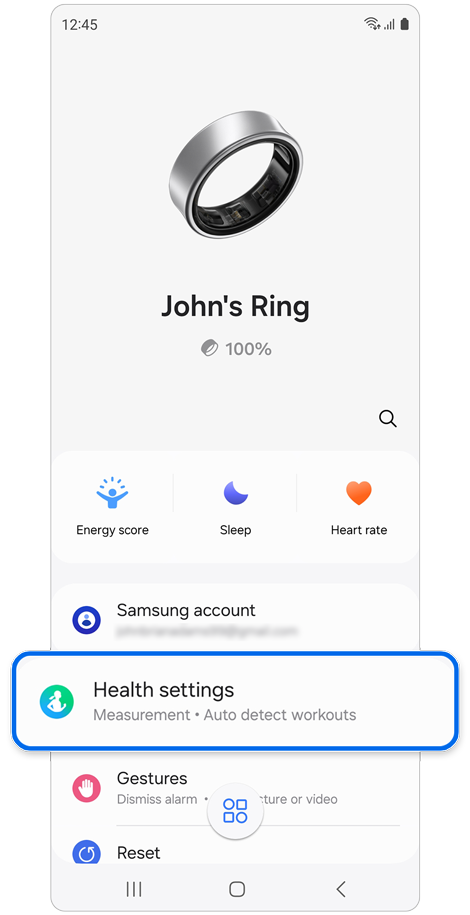
Step 1. Open the Galaxy Wearable app > Tap Health Settings.
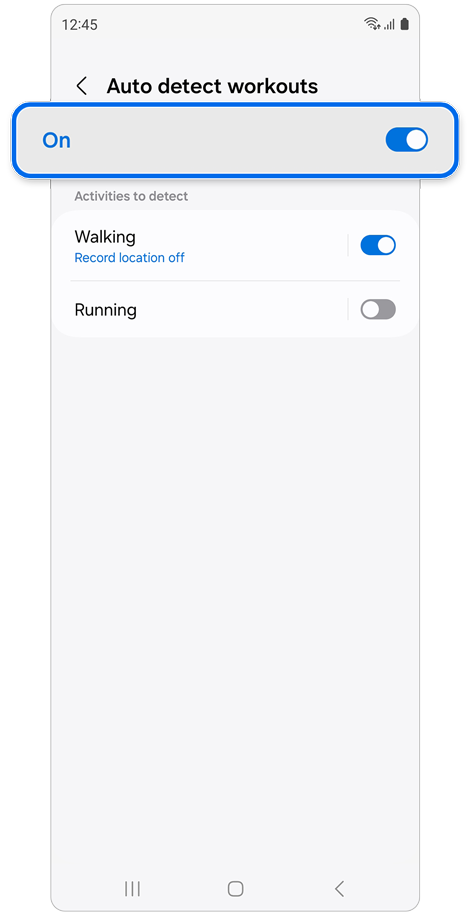
Step 2. Tap Activities to detect > Turn switch On and specify activities that you'd like to auto detect.
Stress monitoring
- Open Samsung Health app.
- Check stress levels and breathing exercises.
Important usage tips
- Wear the ring on your less-used hand.
- Avoid wearing other metal rings on nearby fingers.
- Remove the ring when lifting heavy objects or using gym equipment.
- Keep the ring and your finger clean and dry.
- Stop using it if skin irritation occurs.
Notes:
- Some features may vary depending on device, country, or carrier.
- This device is for fitness and wellness tracking only and not for medical use.
- Performance may vary based on lifestyle and usage patterns.
Thank you for your feedback!
Please answer all questions.