Unlock Your Samsung Galaxy with a previous screen lock method
If you forgot your current PIN, password, or pattern, you can unlock your Samsung Galaxy device using a previous screen lock method. This feature is available on devices running One UI 6.1 or later and works within 72 hours after changing your lock.
This guide explains how to recover access and manage your previous screen lock settings.
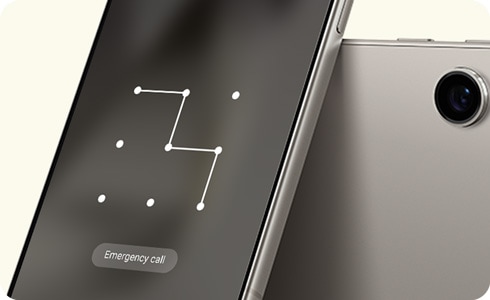
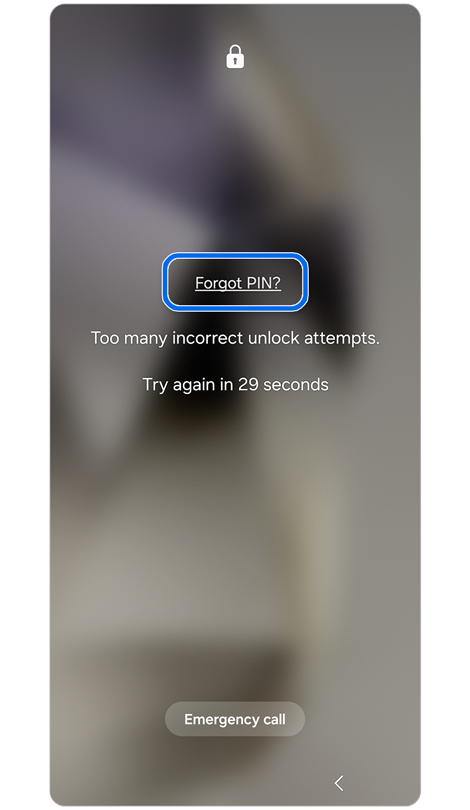
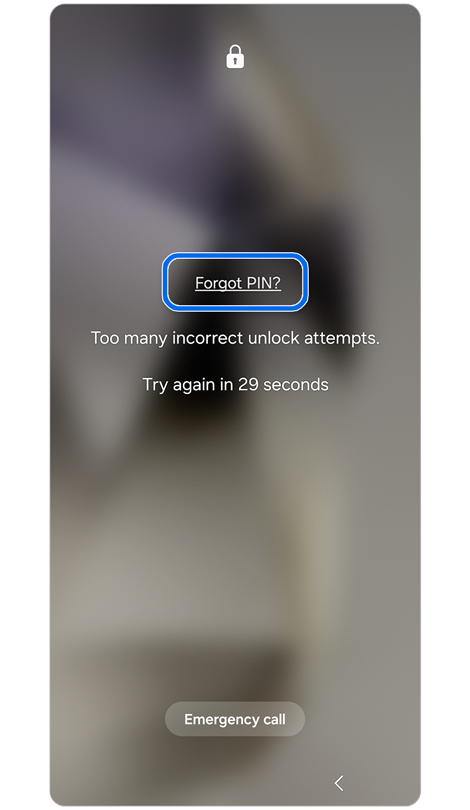
Step 1. Enter the wrong PIN, password, or pattern at least 5 times and tap Forgot PIN? when the link appears.
* The link will refer to your screen lock type.


Step 2. Enter a previous PIN > Tap OK.
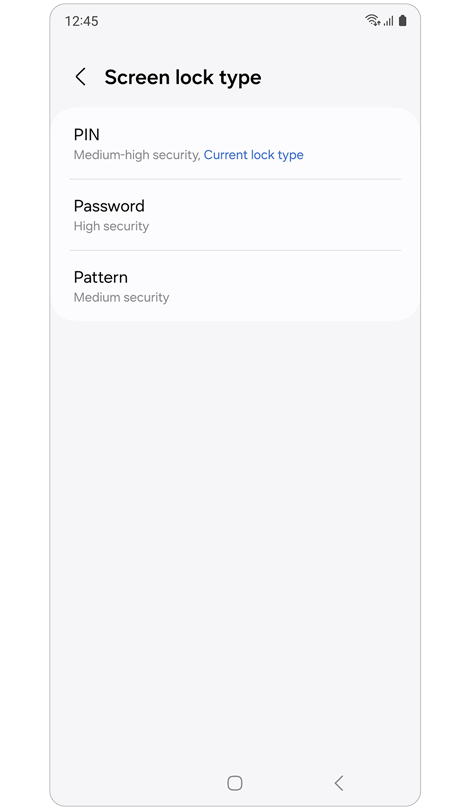
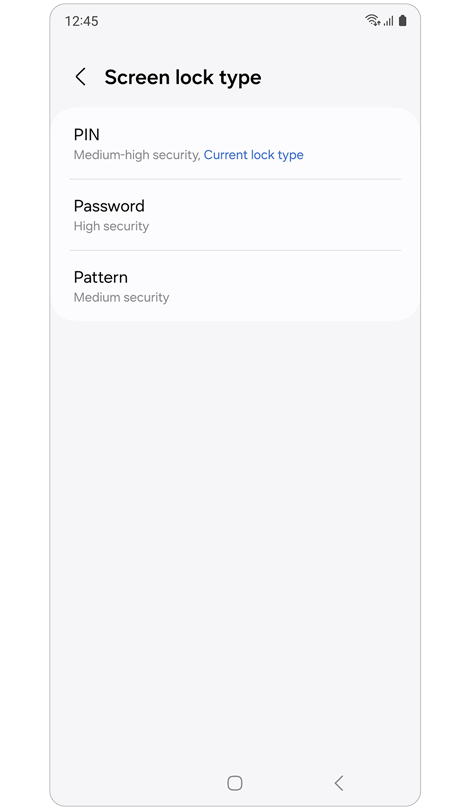
Step 3. To change your current screen lock, select a screen lock type.
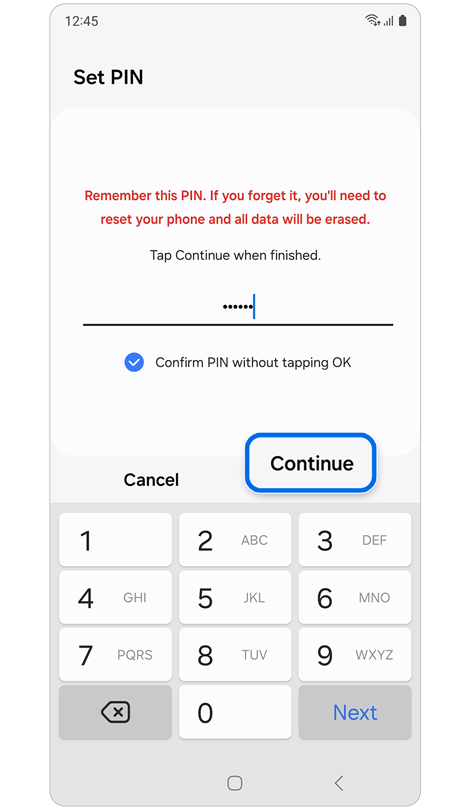
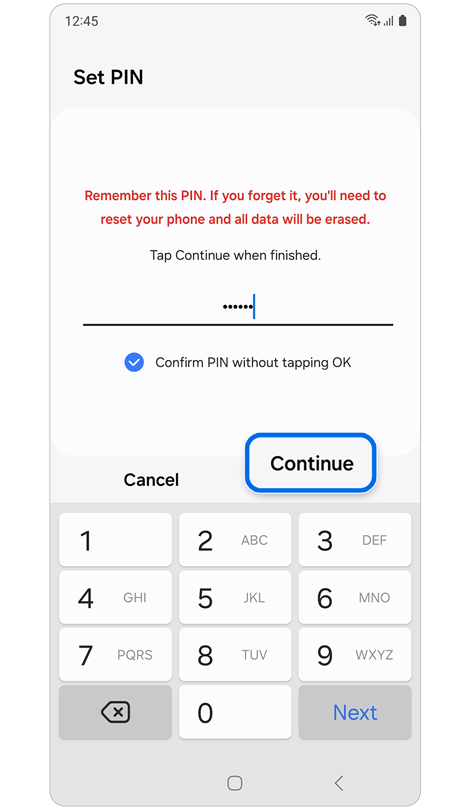
Step 4. Enter the new lock method and tap Continue.


Step 5. Re-enter your new PIN, password, or pattern > Tap OK.


Step 1. Open Settings > Tap Lock screen and AOD.
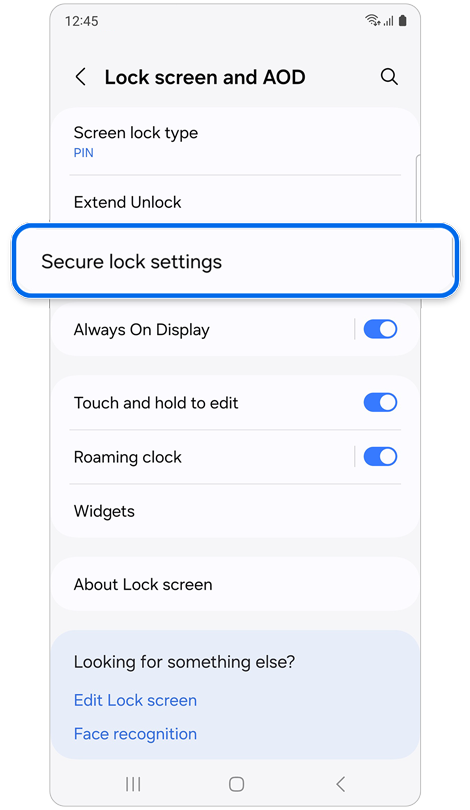
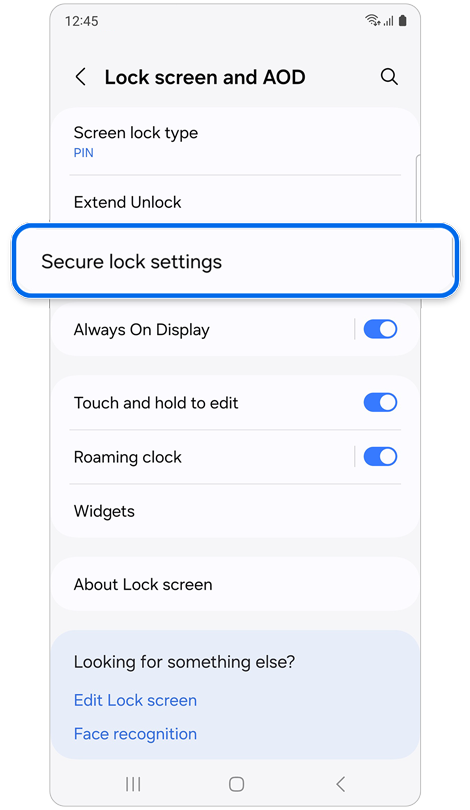
Step 2. Tap Secure lock settings > Enter your PIN, password, or pattern.
* The Secure lock settings button appears only if you have set a pattern, password, or PIN for the lock screen.
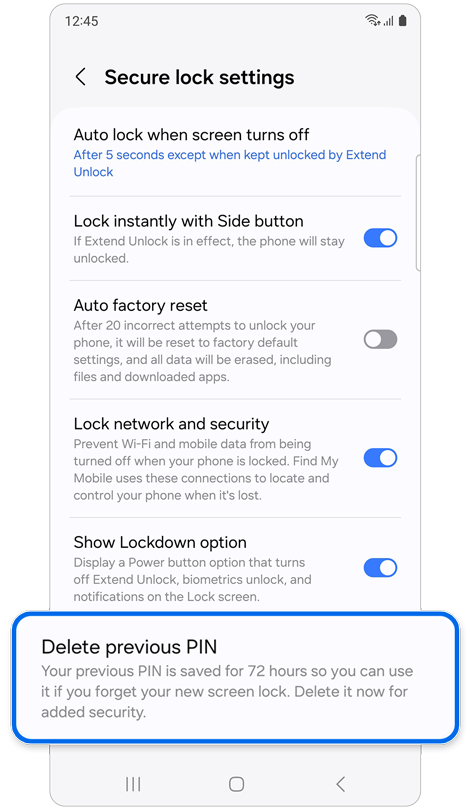
Step 3. Tap Delete previous pattern.
* The Delete option for the old pattern, password, or PIN appears differently depending on the screen lock method currently set up.
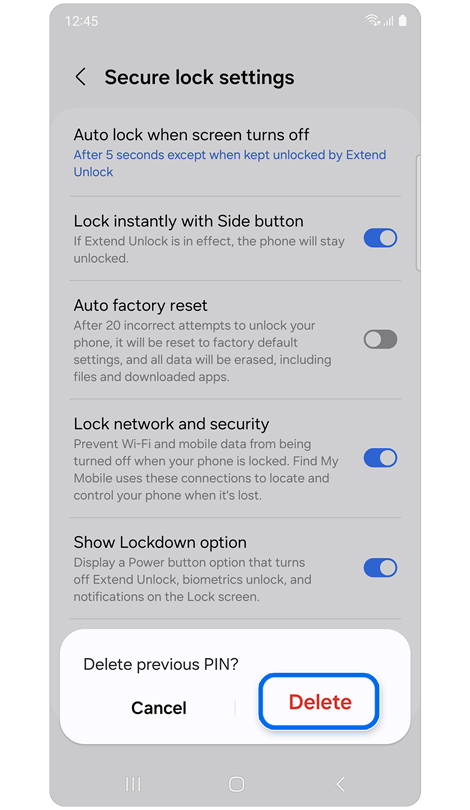
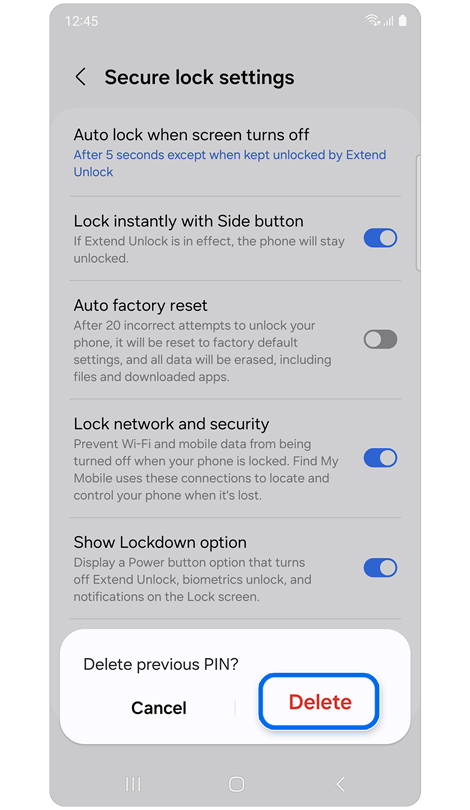
Step 4. Tap Delete.
Thank you for your feedback!
Please answer all questions.